A regular YouTube watch page shows the title, channel, description, views, and some basic details. But it does not always make it easy to inspect the full public metadata behind the video.
That is where TunePocket’s free YouTube Data Viewer can help.
The tool lets you enter a YouTube video link and give you a clean report with the video title, channel, publish date, duration, category, tags, hashtags, thumbnails, public stats, and other useful metadata all in one place.
What You Can Learn From A YouTube Video Link
A YouTube video link contains more useful information than most viewers realize.
With the right metadata tool, you can inspect public video details that are useful for research, planning, reporting, and SEO review.
For example, you may want to know the exact publish date, the official YouTube category, whether the video uses tags, what hashtags appear in the title or description, or what thumbnail sizes are available.
This can be especially helpful when researching competing videos, checking your own uploads, preparing client reports, or studying how successful creators package their content.
How To Get YouTube Video Metadata
1Copy The YouTube Video Link
Open the YouTube video you want to inspect.
Copy the full video URL from your browser address bar or use the share button on YouTube.
The link can be from a regular YouTube video, Shorts video, or another public YouTube watch page.
2Open TunePocket’s YouTube Data Viewer
Go to the free YouTube Data Viewer tool.
This tool is designed to show public YouTube video metadata in a creator-friendly format, without forcing you to dig through page code or API output.
3Paste The Video Link
Paste the YouTube video URL into the tool.
Then run the check.
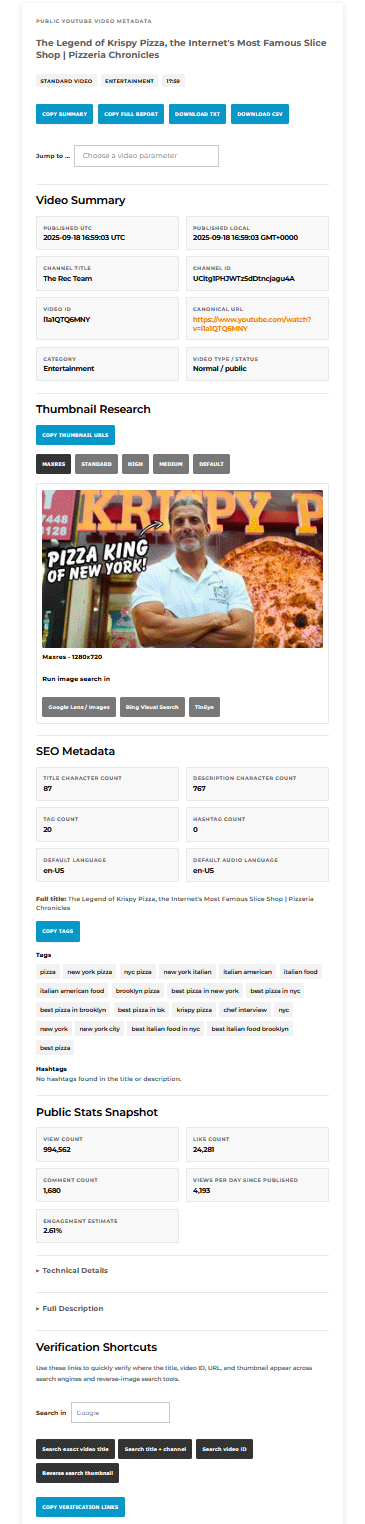
TunePocket will pull the available public video data and organize it into a readable report:
4Review The Metadata Report
The report includes the video title, channel name, channel ID, video ID, canonical URL, publish date, duration, category, description details, tags, hashtags, public stats, thumbnail URLs, and technical information.
This gives you a much clearer view of how the video is presented to YouTube, search engines, creators, and researchers.
5Copy Or Export The Data
Once you have the report, you can use the copy and export options to save the data.
This is useful for spreadsheets, SEO notes, content audits, creator research, client reports, or internal documentation.
What Metadata Does The Tool Show?
TunePocket’s YouTube Data Viewer focuses on the public data that creators, marketers, video editors, and researchers typically need.
It can show a video summary, including title, channel name, channel ID, video ID, YouTube URL, publish date, duration, and category.
It can also show SEO metadata, including the title, description, title length, description length, tags, tag count, hashtags, and hashtag count.
For performance research, it can display public stats such as views, likes, comments, views per day, and a simple engagement estimate based on available public numbers.
For thumbnail research, it shows available thumbnail images, thumbnail URLs, copy buttons, download options, and reverse-search shortcuts.
The tool may also show technical details such as HD or SD status, captions availability, embeddable status, public stats visibility, paid product placement flag, licensed content flag, and region restrictions when available.
Who Should Use A YouTube Metadata Viewer?
A YouTube metadata viewer is useful for YouTubers, Shorts creators, marketers, SEO researchers, video editors, designers, journalists, educators, and content teams.
YouTubers can use it to research competing videos and check their own uploads.
Marketers can use it to collect video data for reports, audits, and campaign planning.
Video editors and content teams can use it to document reference videos, client examples, or campaign assets.
Thumbnail designers can use it to view available thumbnail sizes and compare thumbnail styles.
Researchers and journalists can use it to check public video details, publish timing, video IDs, thumbnails, and reverse-search options.
FAQ
Can I Get Metadata From Any YouTube Video Link?
You can check public YouTube videos, as long as the data is available publicly.
Private videos, removed videos, restricted videos, or unavailable videos may not return complete information.
Can I See YouTube Tags From A Video?
Yes, when public tags are available, TunePocket’s YouTube Data Viewer will show them in the metadata report.
This is useful for creator research and SEO checks.
Can I See The YouTube Category?
Yes, the tool can show the official YouTube category assigned to the video.
This can help when researching how similar videos are categorized.
Can I Download YouTube Video Metadata?
TunePocket’s tool includes copy and export options, so you can save the data for spreadsheets, reports, audits, or research notes.
Final Thoughts
If you need detailed metadata from a YouTube video link, the easiest option is to use a dedicated tool instead of trying to inspect page code manually.
TunePocket’s free YouTube Data Viewer gives you a clean report with the most useful public video details in one place.
Use it to research videos, review metadata, inspect tags and hashtags, check thumbnails, verify publish details, and save useful YouTube data for your content workflow.
